How to Download and Install VideoBuddy on Your Phone
Installing a new app should be simple, but many users still feel unsure about the correct steps. VideoBuddy is no exception, especially since it is not always available on official app stores. This guide will walk you through the entire installation process in an easy and clear way.
Why Installation Steps Matter
Downloading apps from unofficial sources always requires a bit more caution than using an app store. Since VideoBuddy sometimes needs manual installation, following the right steps protects your phone from unwanted issues. Skipping proper steps can lead to installation errors or, worse, downloading a fake version of the app.
Taking a few extra minutes to follow the correct process saves time and trouble later. This is especially true for users who are new to installing apps outside the Play Store.
Before You Begin
There are a few things you should check before starting the installation. Make sure your phone has enough storage space available, since video downloader apps can take up noticeable space over time. It also helps to have a stable internet connection to avoid interrupted downloads.
Here is a quick checklist to follow before installing:
- Confirm your phone has enough free storage.
- Ensure a stable Wi-Fi or mobile data connection.
- Backup any important files, just as a safety habit.
- Close unnecessary background apps to free up memory.
Completing these small steps beforehand makes the installation process smoother overall.
Step-by-Step Installation Guide
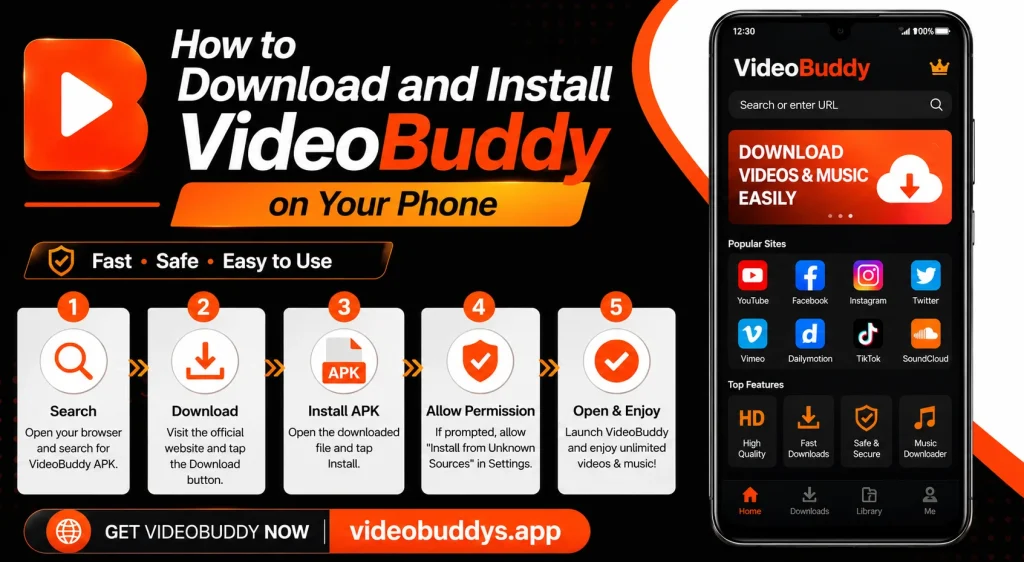
Below is a simple breakdown of the installation process from start to finish.
| Step | Action | Purpose |
|---|---|---|
| 1 | Enable installation from unknown sources | Allows APK installation outside the Play Store |
| 2 | Download the APK file from a trusted source | Gets the actual app file onto your phone |
| 3 | Open the downloaded file | Starts the installation process |
| 4 | Grant necessary permissions | Allows the app to function properly |
| 5 | Complete the installation | App is ready to use |
Following these steps in order helps avoid confusion and ensures the app installs correctly the first time.
Enabling Unknown Sources
Since the app may not be listed on the Play Store, phones usually block installation by default for safety reasons. To allow it, users need to go into their phone settings and enable installation from unknown sources. This setting is usually found under security or privacy options, depending on the phone brand.
Once enabled, the phone will allow APK files to be installed manually. It is a good habit to disable this setting again after installation, simply as an extra safety measure.
Downloading the APK File
After enabling the correct settings, the next step is downloading the actual installation file. It is extremely important to only download from a trusted and verified source, since fake files can sometimes contain harmful software. Avoiding random links shared through messages or unknown websites reduces this risk significantly.
Once the file finishes downloading, it usually appears in the phone’s downloads folder or notification bar. From there, tapping the file begins the installation process automatically.
Granting Permissions
During installation, the app may ask for certain permissions such as storage access or media access. These permissions are usually necessary for the app to save downloaded videos properly. However, if the app requests permissions that seem unrelated to its purpose, that is a sign to pause and review the source again.
Users should always read permission requests carefully instead of accepting them without thinking. This small habit goes a long way in keeping a device safe.
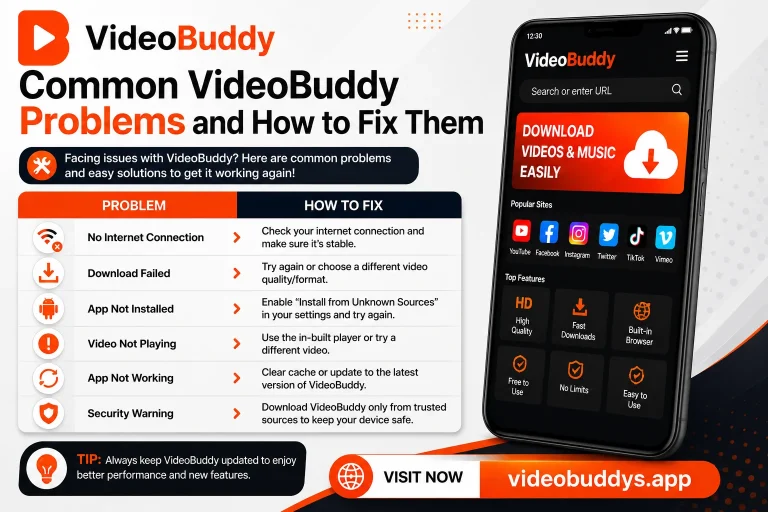
Common Installation Problems
Sometimes users run into small issues during installation, and most of them have simple solutions. Below is a list of common problems and quick fixes:
- App not installing – Restart the phone and try again.
- Blocked by security settings – Recheck unknown sources permission.
- Corrupted file – Redownload the APK from a trusted source.
- Insufficient storage – Clear space and retry installation.
- App crashing after install – Update to the latest version available.
Most installation issues can be solved quickly by following these basic troubleshooting steps.
Setting Up VideoBuddy After Installation
Once installed, opening the app for the first time usually shows a short setup or welcome screen. Users may need to grant a few final permissions before the app becomes fully functional. After that, the app is ready for searching, browsing, and downloading videos right away.
Taking a moment to explore the settings menu can also help customize download quality and storage location according to personal preference. This small step makes the overall experience more comfortable for long-term use.
Staying Safe While Installing Third-Party Apps
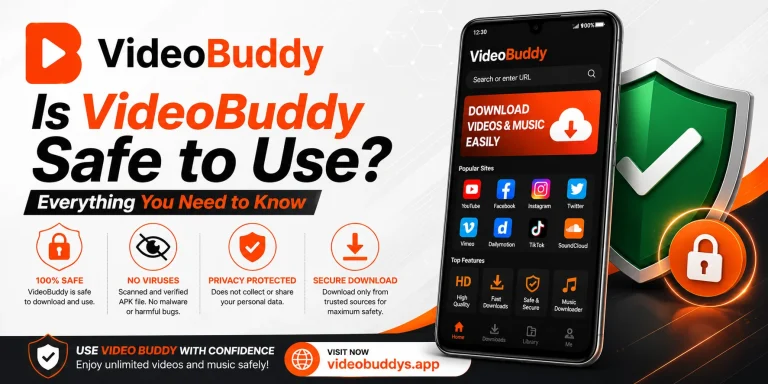
Installing apps outside official stores always comes with some responsibility on the user’s side. Sticking to verified sources, checking permissions, and keeping the phone’s security settings updated are simple habits that reduce risk significantly. These practices apply not just to VideoBuddy, but to any similar app installed manually.
For readers who want detailed, step-by-step installation guides along with safety tips, VIDEOBUDDYS.APP provides clear instructions designed for beginners. It is a useful reference for anyone who wants extra confidence before installing a new app.
Final Thoughts
Installing VideoBuddy on your phone does not have to be complicated once you understand the correct steps. By preparing in advance, enabling the right settings, and downloading from a trusted source, the entire process becomes quick and simple. Following this guide should help you get the app up and running without unnecessary trouble.
For more helpful installation guides and app comparisons, VIDEOBUDDYS.APP remains a dependable resource worth checking before installing any new video downloader app.